Staff permission settings
A clinic can create a role for each kind of job, such as a clinic assistant or a dispenser, and decide item by item what each role may view, create, edit or delete. A role can also be limited to the patients assigned to it. High-risk permissions, such as deleting and importing, and permissions that touch sensitive data are clearly marked, so the clinic’s managers can keep control and protect patient privacy.
Creating a role
- In the side menu, open Roles and permissions (職位及權限). The list shows the built-in roles (Global, 全域), the roles the clinic created (This Organization, 本機構) and how many staff hold each.
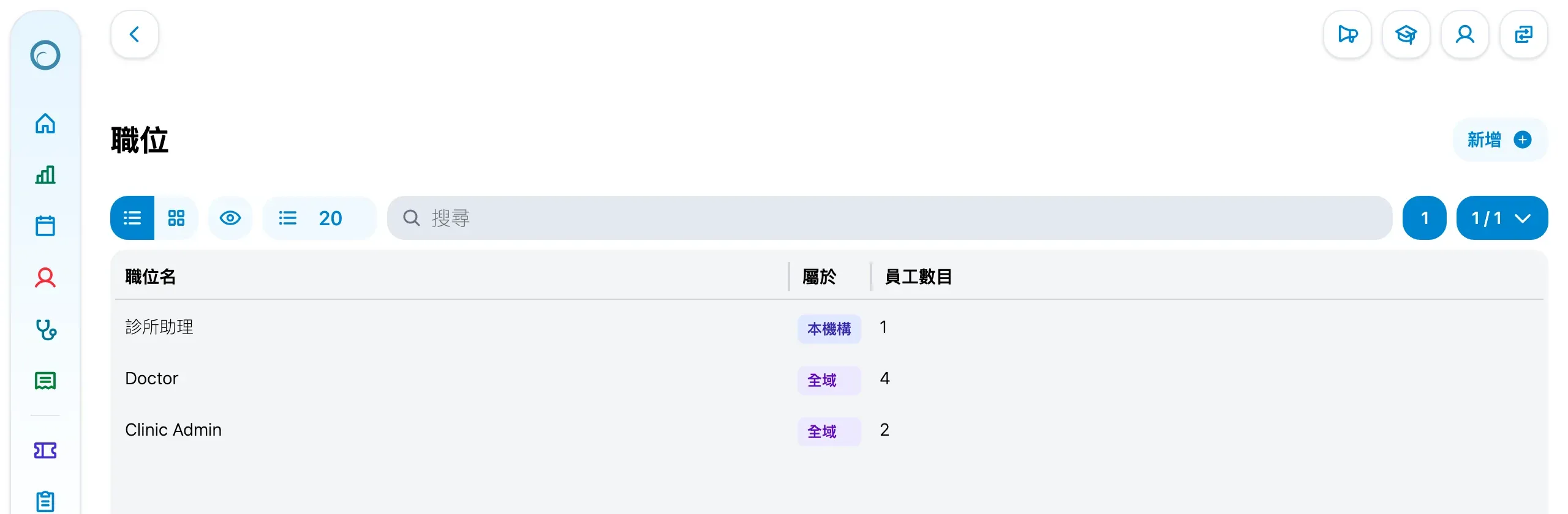
- Click Create (新增) at the top right and fill in the role title and description.
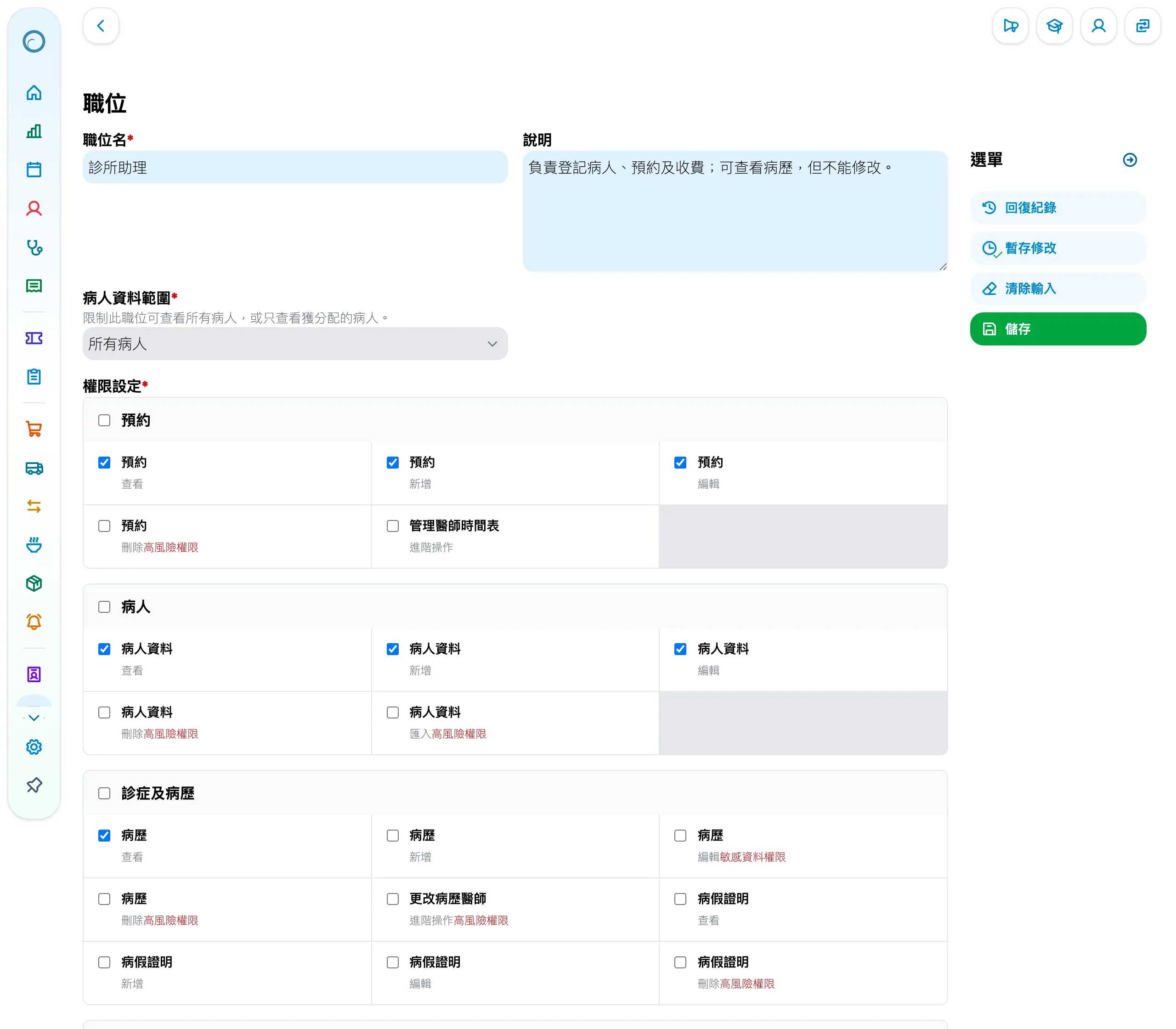
- Under Patient access scope (病人資料範圍), choose whether the role sees all patients or only its assigned patients.
- Under Permissions (權限設定), tick each permission. They are grouped by work, such as appointments, patients, consultations and records, billing and orders, and drugs and stock; ticking a group’s name selects the whole group.
- Click Save (儲存) in the menu on the right.
Giving a staff member a role
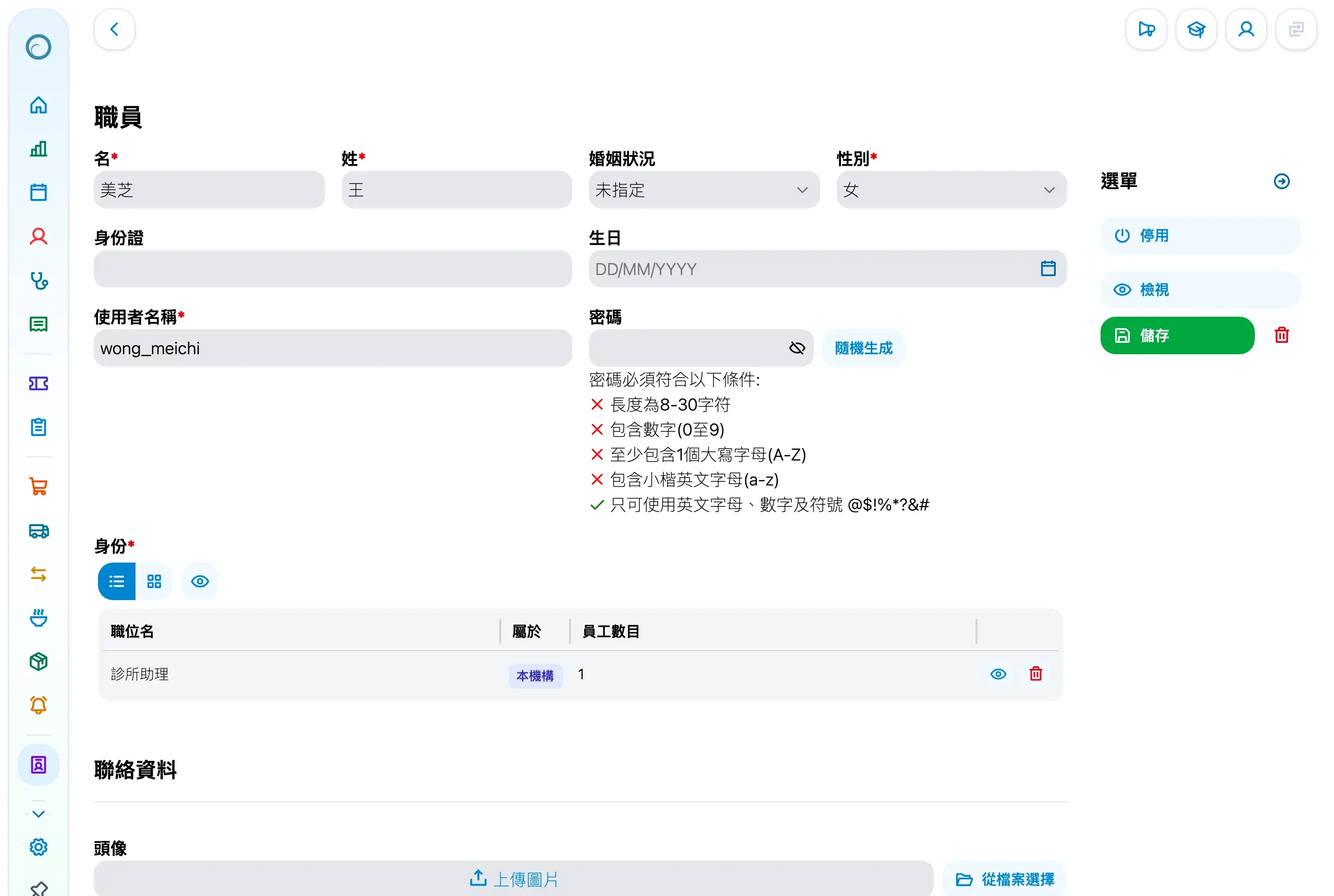
- In the side menu, open Staff (職員管理), open the staff member and click Edit (修改) in the menu on the right.
- Under Role (身份), remove the current role with the bin icon, click the select button and click the new role in the list.
- Click Save (儲存). The new permissions apply at once, and the side menu follows the new role when the staff member reloads the page.
Only staff with the matching permissions, such as the clinic’s managers, can create roles and give them to staff.
New to Medicloud? Try it free for 3 months, no credit card