Prescribing: a whole prescription from the keyboard
Doctors can keep both hands on the keyboard while prescribing: type a name or pinyin initials and press Enter to add it, and the cursor stays in the search box for the next herb. When filling in grams, Tab moves from herb to herb, and Enter or / goes back to the search box. Every search result shows its brand, its stock and the grams already added, so you know while prescribing whether the dispensary has it.
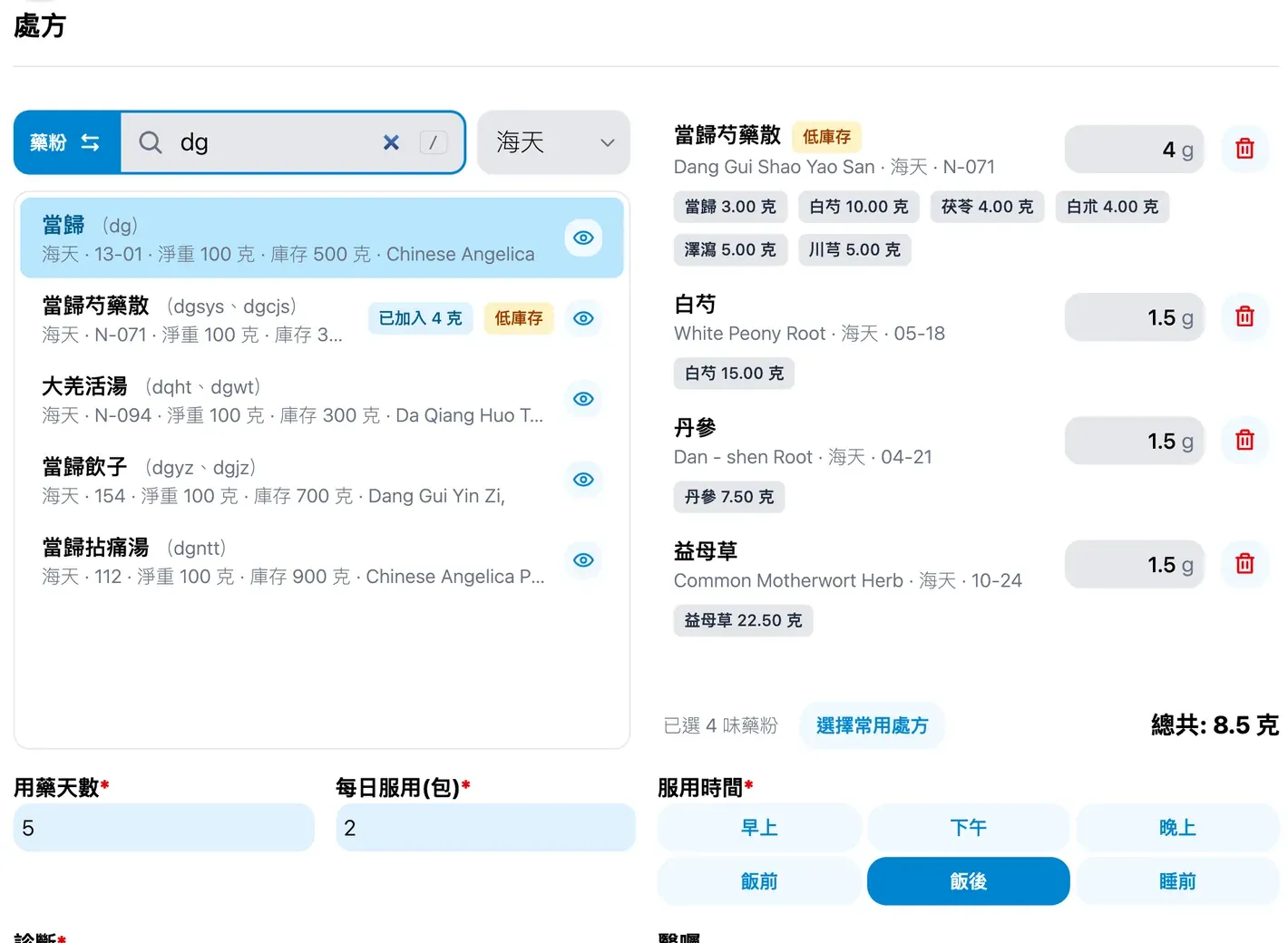
What the prescribing screen does
- Search by Chinese name, pinyin initials, alias, product code (PID) or Hong Kong registration number. Exact matches come first and items in stock rank higher.
- Pick with ↑↓ and add with Enter. The cursor stays in the search box for the next herb.
- Tab moves between gram fields. Enter in a gram field, or
/at any time, brings you back to the search box. - Decoction pieces and granules are prescribed separately, with a confirmation before switching. Granules can be filtered by brand, including 農本方, 海天, 順天堂, 漢方 and 綠色仁和.
- Selected pieces show their decoction method and granules their compound ingredients, with a running total in grams.
- Set the days, packs per day, and morning, afternoon, evening, before or after meals or bedtime with one tap each.
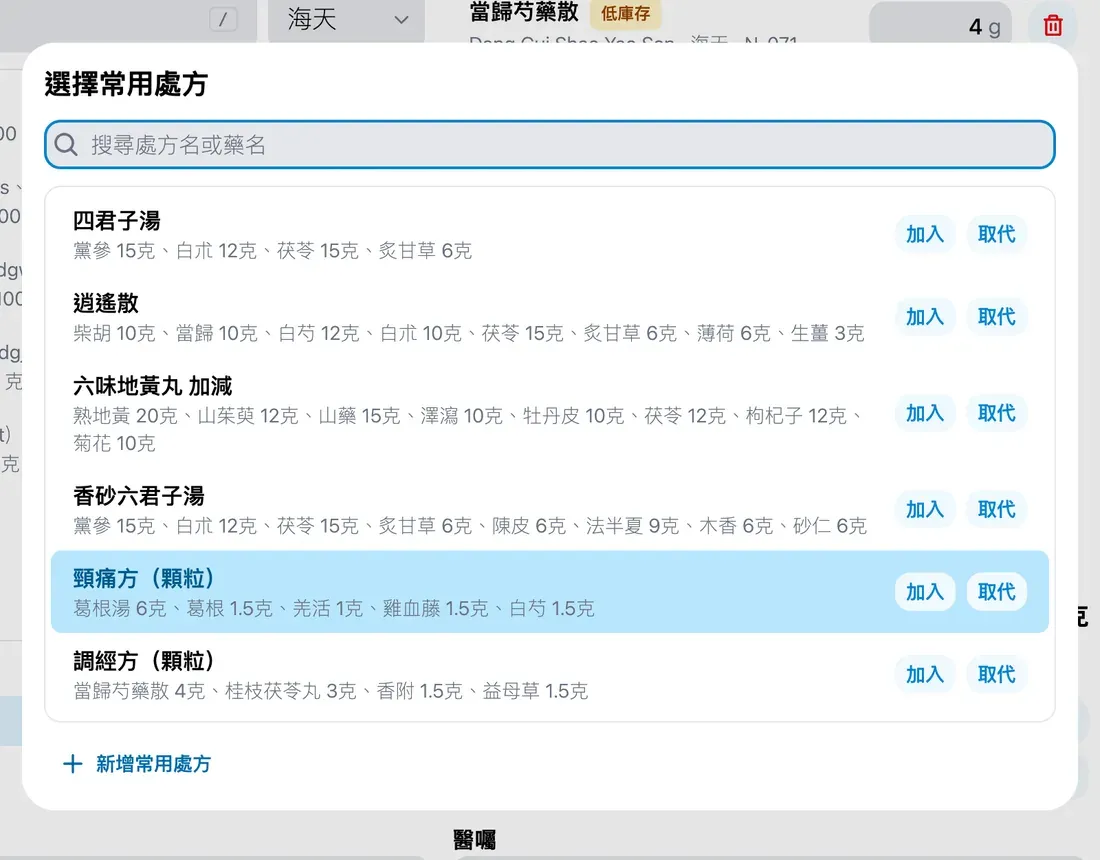
- Common prescriptions can be added to, or replace, the current prescription. Items the clinic does not stock or has switched off are skipped and listed.
- Saving deducts stock according to the clinic’s dose-merge setting, and deleting the record returns it.
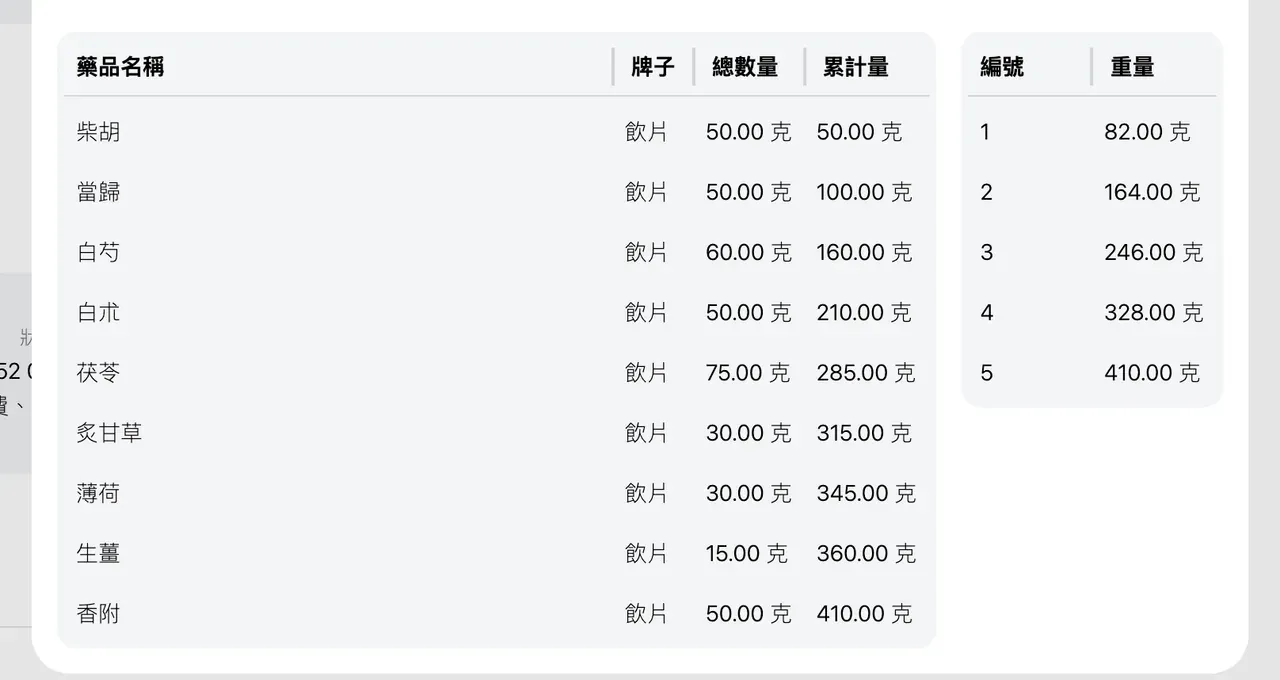
- The dispensing helper lists each herb with a running weight.
- On phones and tablets you switch between “pick” and “selected”.
From the queue to a prescription
- On the home page, press 診症 (consult) on one of today’s appointments to open a new record with the patient and appointment filled in. If useful, load one of the patient’s past records as a starting point.
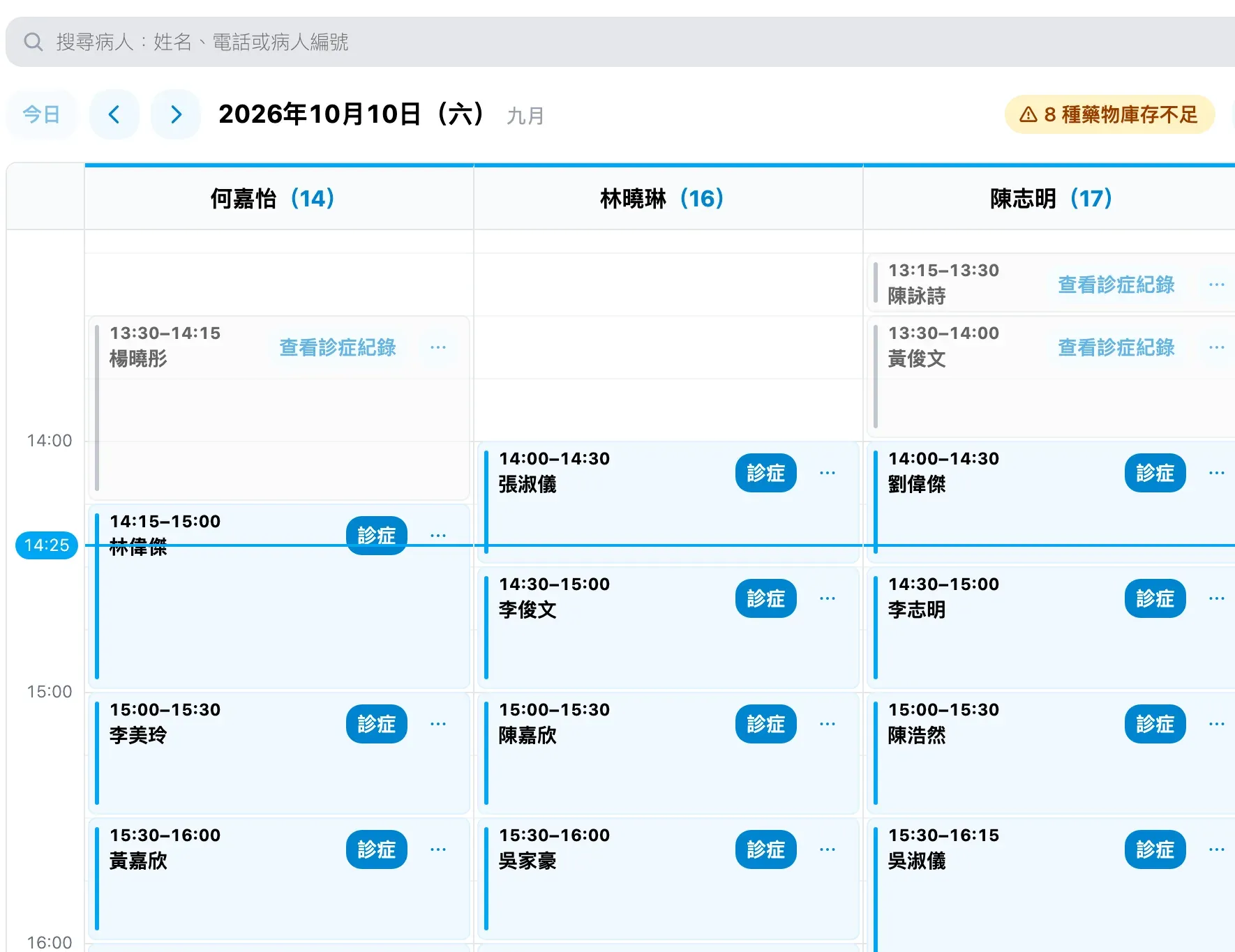
-
In the prescription, choose pieces or granules, type a name or pinyin initials, press Enter, and search for the next herb. Then fill in the grams, using Tab to move to the next herb and Enter to return to the search box.
-
For a common prescription, search by its name or by a herb and press add or replace.
- Set the days, packs per day and timing, then save. Print in the prescription style you choose, or open the dispensing helper.
New to Medicloud? Try it free for 3 months, no credit card