Several clinics, one login
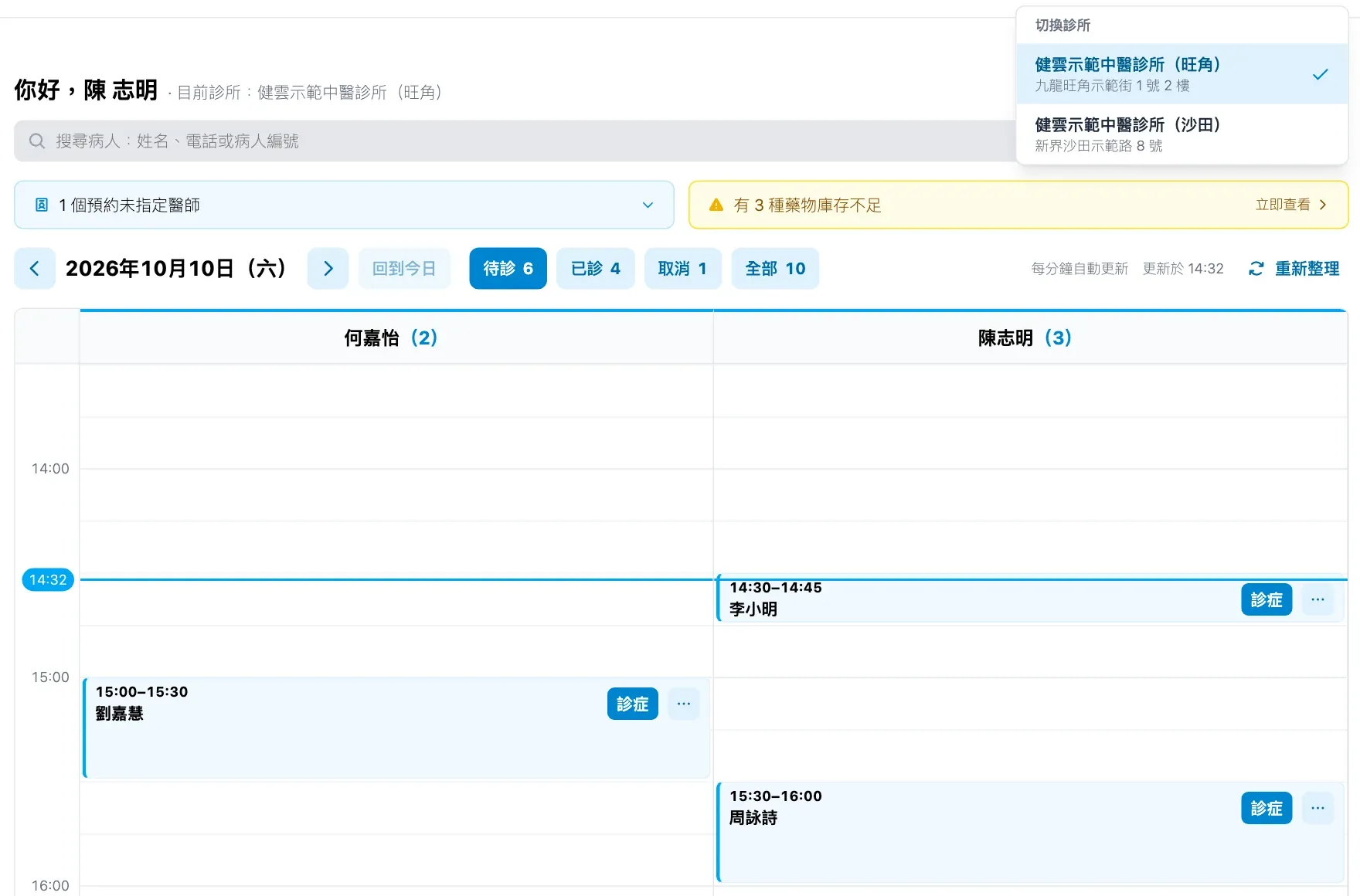
An organisation with several branches manages them all in one account. A doctor who works at two branches switches between them with one login, and each browser tab can work in a different clinic, so two branches’ appointments can sit side by side.
What it does
- Switch clinic from the top bar; it changes only the current browser tab.
- Opening another clinic’s record asks to switch first, so nothing is recorded in the wrong clinic.
- The switcher is locked while you edit, so data never lands in the wrong place.
- The clinic admin can copy one or several patients to another branch, with their past records as read-only history. Before copying, Medicloud checks the branch for the same patient by HKID, passport, or name and phone.
- A doctor’s e-signature, record fields, decoction methods, medical advice and common prescriptions follow the doctor to every branch.
- Each clinic keeps its own patients, appointments, receipts, stock, prices and print settings; stock and reports are per clinic.
- Staff accounts, roles and the subscription belong to the organisation.
Copying a patient to another branch
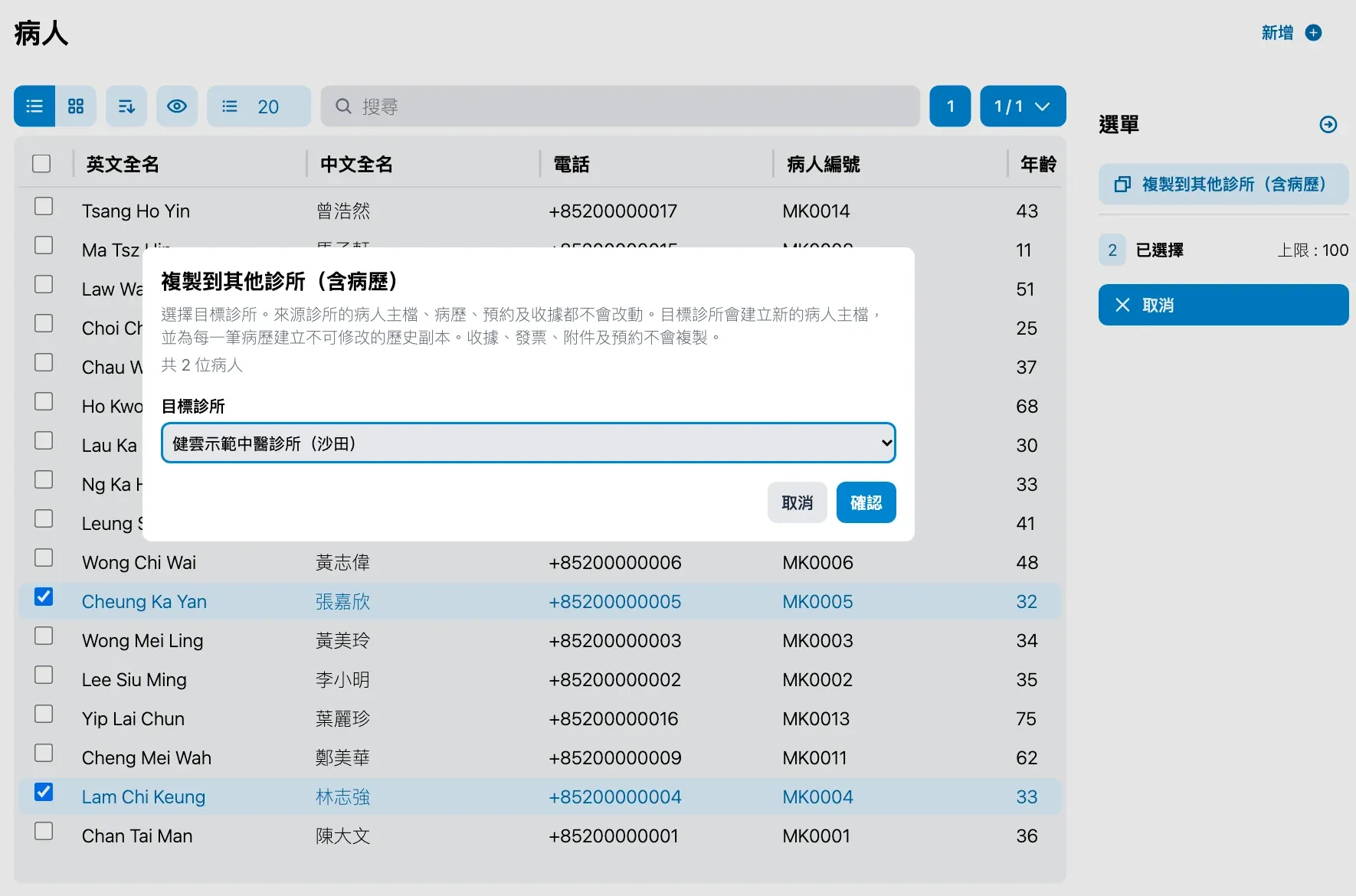
- In the patient list, select one or more patients, press 複製到其他診所 (copy to another clinic) and choose the branch.
-
Medicloud checks whether the branch already has the same patient, and you can skip or cancel.
-
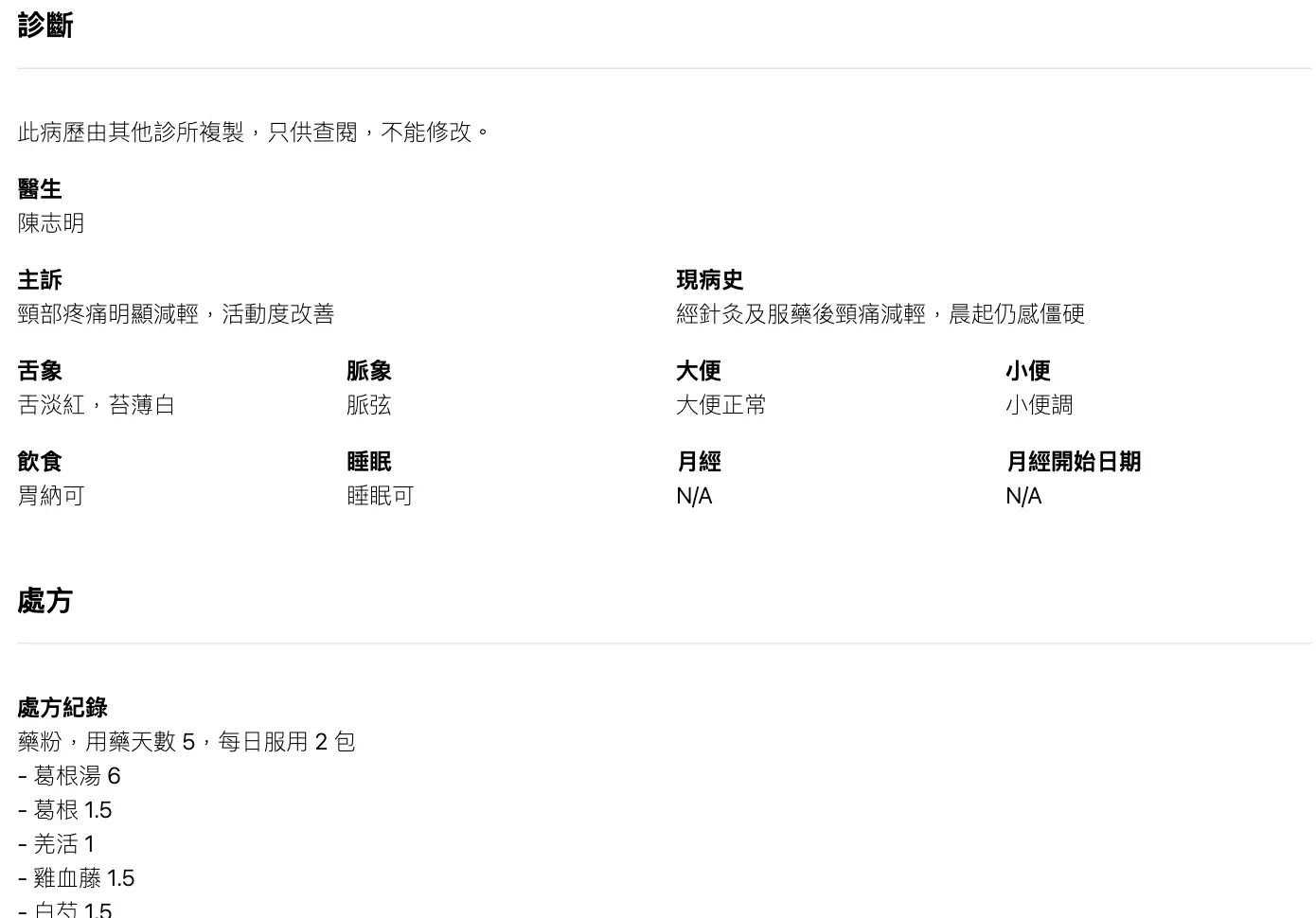
In the new branch, the patient’s past records appear as read-only history for follow-up visits.
Pricing
Each clinic subscribes separately, with every feature and 10 staff accounts included. Running several branches? Contact us directly.
New to Medicloud? Try it free for 3 months, no credit card